
Free Stock Video Essentials: Resolution, Frame Rates & Aspect Ratios Explained

If you’ve ever grabbed a stock video, dropped it into your project, and thought, “Why does this look weird?” — yeah, you’re not alone. It’s usually not your fault. Most of the time, the issue comes down to something simple like resolution, frame rate, or aspect ratio.
They sound technical, but once you get what they mean, everything starts to click. And trust me, learning this saves you from hours of re-editing (and a few headaches).
Resolution: Why Some Videos Look Sharp and Others Don’t
Resolution basically means how detailed your video is — how many pixels make up each frame. More pixels = a sharper, cleaner look.
Here’s the quick breakdown:
- 720p – okay for social media or small web embeds.
- 1080p – kind of the sweet spot; it’s crisp but not too heavy to upload.
- 4K – super sharp, great for large screens or if you want that premium feel.
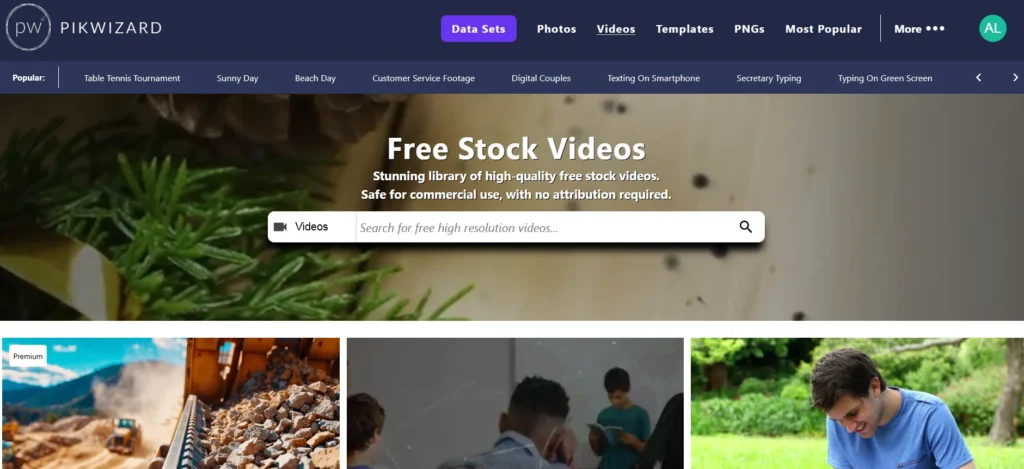
If you’re pulling free footage from somewhere like Pikwizard Free Videos Library, always grab the highest resolution available. You can make a big file smaller, but you can’t make a low-res video magically sharper.
Frame Rate: How “Smooth” the Motion Feels
This one’s measured in frames per second (FPS), and it controls how natural the movement looks.
Here’s what you’ll usually see:
- 24 FPS – gives that cinematic, movie-style vibe.
- 30 FPS – the standard for online videos and social media.
- 60 FPS – buttery-smooth, often used for gaming or fast motion.
If you’re just making content for Instagram or your website, 24 or 30 is perfect. You only need higher frame rates if you’re doing something sporty or dramatic.
Oh, and try not to mix them — nothing kills a clean edit faster than jumping between clips with different frame rates.
Aspect Ratio: The Shape of the Frame

Image by Pikwizard.com
Aspect ratio is just the shape of your video — basically, how it fits on the screen.
- 16:9 – the classic widescreen you see on YouTube or laptops.
- 1:1 – square; looks nice on Instagram feeds.
- 9:16 – tall vertical format, perfect for Reels, TikTok, and Stories.
If you’re planning to use the same video across different platforms, you’ll want to crop or resize versions for each one. Even free editors like Canva or CapCut can handle this in a few clicks.
The Real Trick: Start with Good Footage
Here’s the truth — you can know all the right settings, but if the original video looks bad, you’re fighting an uphill battle.
That’s why I like using places like Pikwizard. The videos there are already high-quality, and you don’t have to worry about licensing or weird watermarks. You can just download, edit, and post.
Once you’ve got a clean source clip, it’s easy to adjust resolution or crop it for different formats without losing quality.
A Few Quick Tips from Experience
- Always preview before downloading. Some “4K” clips aren’t real 4K.
- Don’t stretch videos to fit a format — crop instead.
- If you’re uploading to social, export smaller file sizes (your followers’ Wi-Fi will thank you).
- Keep consistency — use similar aspect ratios and tones so your videos look like they belong together.
You don’t have to be a video pro to make your content look professional. Once you understand what resolution, frame rate, and aspect ratio actually mean, everything starts to make sense.