How to Turn Your Tablet Into a Second Monitor for a More Productive Remote Work Setup

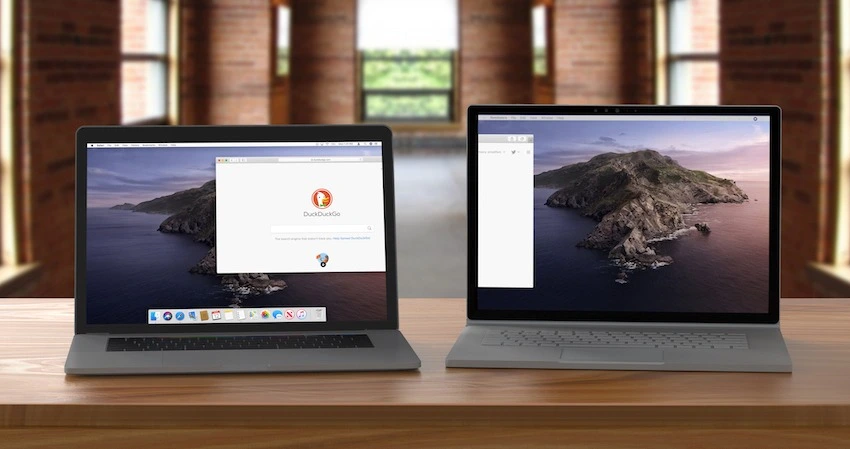
In today’s remote and hybrid work culture, expanding your screen space is one of the easiest ways to boost productivity. A powerful and affordable option is transforming your tablet into a fully functional second display. With tools like Duet Display, you can set up a dual-screen workflow in minutes. To begin, simply Download Duet Display for PC and install the required desktop host on your Windows or macOS computer—this host software is essential for enabling the connection between your tablet and primary workstation.
Why Professionals Use Their Tablet as a Second Screen
Using a tablet as a second monitor is becoming a top trend among remote workers, creators, developers, and business professionals who need maximum screen space without investing in bulky hardware. More screen real estate means:
- Faster multitasking
- Easy comparison of documents
- Improved monitoring of apps and dashboards
- Better workflow organization
This upgrade can dramatically improve overall productivity with minimal setup.
Duet Display: The Most Reliable Solution for Zero-Lag Performance
What makes Duet Display stand out is its focus on professional-grade performance. Whether you connect through USB or go wireless, Duet delivers zero-lag responsiveness. This makes it ideal for:
- Designers who need smooth visuals
- Developers tracking multiple windows
- Video editors needing real-time previews
- Financial analysts monitoring live data
- Remote workers who rely on seamless multitasking
The combination of low latency and high stability makes Duet Display one of the most trusted tools for enhancing productivity.
Step-by-Step Guide: Turn Your Tablet Into a Second Monitor
Setting up Duet Display is fast and beginner-friendly:
1. Download the Desktop Host (Required)
Go to the official Duet Display website and install the duet desktop host software on your macOS or Windows computer.
This is mandatory for the connection to work.
2. Install Duet on Your Tablet
Download the Duet app from the App Store, Google Play, or ChromeOS Store.
3. Connect Your Devices
You can choose:
- Wired mode (USB-C / Lightning) — best for maximum performance
- Wireless mode — convenient and still delivers zero-lag response
4. Enjoy Your New Portable Second Monitor
Your tablet immediately becomes an extended or mirrored display. No complex configuration. No driver headaches.
Benefits of Using Your Tablet as a Second Monitor
- Portable and lightweight
- More affordable than buying a new external monitor
- Ideal for travel or flexible workstations
- Enhances focus and workload management
- Works seamlessly across Windows and macOS systems
With the right setup, your workspace becomes faster, smarter, and more productive.
Optimize Your Remote Work Productivity Today
If you’re ready to take your productivity to the next level, visit the Duet Display website and download the desktop host for your workstation today. With zero-lag performance and effortless setup, Duet Display unlocks the full potential of your tablet—turning it into a powerful second monitor built for professional workflows.