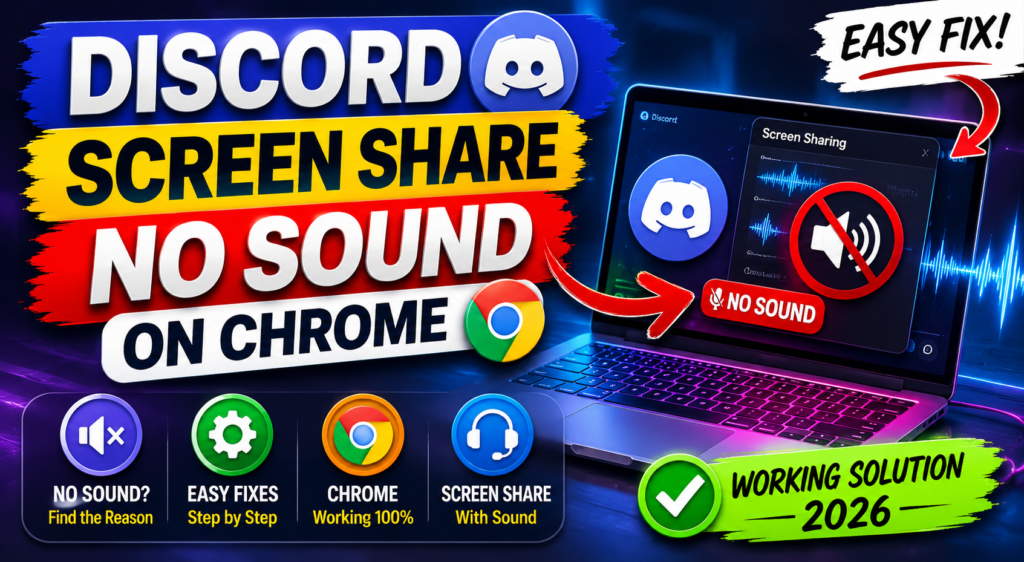
Why Discord Screen Share Has No Sound on Chrome (Easy Fix 2026)
If your Discord screen share has no sound on Chrome, you are not alone. Many users face this issue while streaming videos, YouTube, Netflix, presentations, or browser tabs to friends on Discord.
In most cases, the problem happens because of incorrect audio-sharing settings, disabled browser permissions, outdated Discord versions, or Chrome configuration issues.
The good news is that you can fix the Discord screen share audio not working on Chrome issue in just a few minutes using the methods below.
Why Does Discord Screen Share Have No Sound on Chrome?
The Discord screen share no sound Chrome issue usually happens when tab audio is disabled or Discord cannot capture browser audio properly.
Common reasons include:
- Chrome tab audio not enabled
- Outdated Discord or Chrome version
- Hardware acceleration conflicts
- Incorrect Windows sound settings
- Browser permission problems
- Corrupted cache files
- Discord experimental audio bugs
Luckily, these fixes work for almost every user.
1. Share the Chrome Tab Instead of the Entire Screen
This is the most important fix.
Discord captures audio much better when you share a specific Chrome tab instead of your whole screen.
Steps to Enable Chrome Tab Audio on Discord
- Open Discord
- Join a voice channel
- Click Share Your Screen
- Select the Chrome Tab
- Turn ON Share Tab Audio
- Start streaming
If the Share Tab Audio option is disabled, your friends will not hear any sound during screen sharing.
This method fixes the issue for most users instantly.
2. Check Discord Audio Permissions
Sometimes Discord does not have permission to access audio correctly.
On Windows
- Open Settings
- Go to Privacy & Security
- Click Microphone
- Enable microphone access for Discord and Chrome
Also make sure:
- Discord is not muted
- Correct output device is selected
- Browser audio is working normally
3. Enable Hardware Acceleration in Chrome
Hardware acceleration helps Chrome process audio and video more efficiently.
How to Enable Hardware Acceleration in Chrome
- Open Chrome
- Click the three dots menu
- Go to Settings
- Open System
- Turn ON:
Use hardware acceleration when available - Restart Chrome
Now test Discord screen sharing again.
4. Disable Hardware Acceleration in Discord
Sometimes Discord’s own hardware acceleration creates audio conflicts.
Steps
- Open Discord
- Go to User Settings
- Click Voice & Video
- Scroll down
- Disable:
- Hardware Acceleration
- OpenH264 Video Codec
- Restart Discord
Many users report this fixes the Discord streaming no audio Chrome problem immediately.
5. Update Discord and Google Chrome
Older versions often cause compatibility issues.
Update Chrome
- Open Chrome
- Type:
chrome://settings/help - Chrome will automatically check for updates
Update Discord
- Restart Discord completely
- Discord usually updates automatically
- Or reinstall the latest version from the official website
Running updated versions reduces screen-sharing bugs significantly.
6. Restart Windows Audio Services
Broken audio services can stop Discord from transmitting browser sound.
Steps
- Press:
Windows + R - Type:
services.msc - Find:
- Windows Audio
- Windows Audio Endpoint Builder
- Right-click both services
- Click Restart
Now reopen Discord and Chrome.
7. Clear Chrome Cache and Temporary Files
Corrupted browser cache can interfere with audio sharing.
How to Clear Chrome Cache
- Open Chrome
- Press:
Ctrl + Shift + Delete - Select:
- Cached images and files
- Cookies
- Click Clear Data
Restart Chrome afterward.
8. Disable Experimental Discord Features
Discord experimental features sometimes break audio capture on Chrome.
To Disable Experimental Features
- Open Discord Settings
- Go to Voice & Video
- Turn OFF:
- Experimental audio capture
- Advanced voice activity
- Krisp Noise Suppression (temporarily)
Test screen sharing again.
9. Use the Discord Desktop App Instead of Browser Discord
If you are using Discord inside Chrome itself, audio sharing may not work properly.
The desktop app provides:
- Better audio capture
- Improved screen-sharing support
- Lower latency
- More stable performance
For best results:
- Use Chrome only for the content
- Use the Discord desktop app for streaming
Best Fix That Works for Most Users
If you want the fastest solution, do these four things:
- Share the Chrome tab only
- Enable Share Tab Audio
- Disable Discord hardware acceleration
- Restart both Chrome and Discord
This fixes the Discord screen share audio not working Chrome issue for most people instantly.
Frequently Asked Questions
Why is Discord screen share muted on Chrome?
Usually because the Share Tab Audio option is disabled or Discord cannot capture browser audio correctly.
Why can my friends not hear audio on Discord stream?
This can happen due to:
Incorrect sound settings
Disabled browser permissions
Hardware acceleration conflicts
Outdated Discord version
Does Discord support Chrome audio sharing?
Yes. Discord fully supports Chrome tab audio sharing when you select a browser tab instead of the entire screen.
How do I share browser audio on Discord?
Choose:
Share Screen → Chrome Tab → Enable Share Tab Audio
This is the correct way to share browser sound.
Final Words
The Discord screen share no sound Chrome issue is very common, but it is usually easy to fix. In most cases, enabling Chrome tab audio and adjusting Discord settings solves the problem within minutes.
If the issue still continues, try reinstalling Discord or testing another browser temporarily.