
How to Stop Windows 11 Using Too Much RAM After Update (2026 Guide)

If your PC suddenly becomes slow after a Windows update, you are not alone. Many users report that Windows 11 uses too much RAM after update, even while doing basic tasks like browsing, gaming, or watching videos.
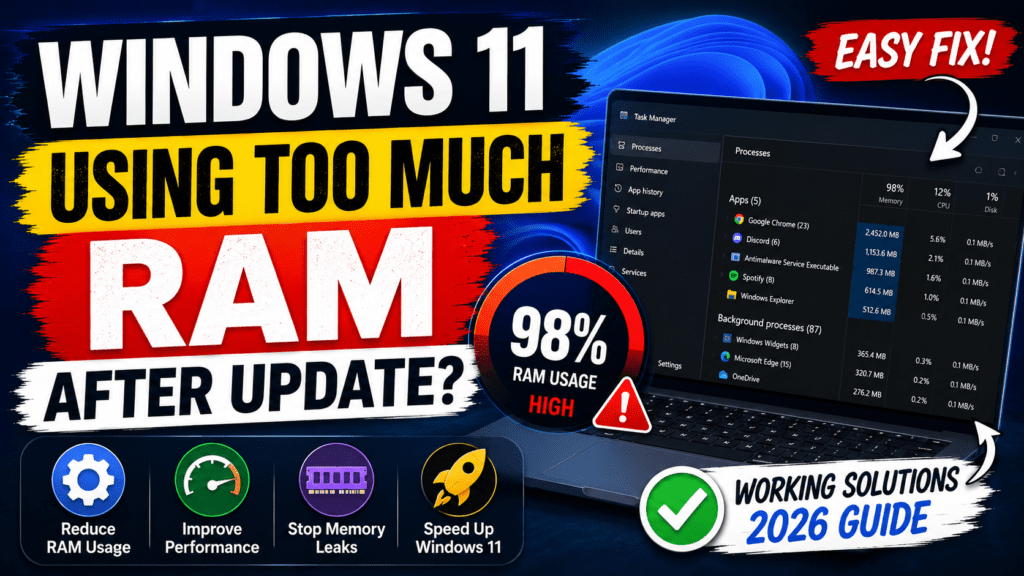
High memory usage can cause:
- Lag and stuttering
- Slow startup times
- FPS drops in games
- Chrome freezing
- Background apps crashing
The good news is that this problem is usually easy to fix using the methods below.
Why Is Windows 11 Using Too Much RAM After an Update?
The Windows 11 high RAM usage after update issue usually happens because of:
- Broken Windows updates
- Memory leaks
- Too many startup apps
- Windows Defender background scans
- Widgets and animations
- Corrupted system files
- Driver conflicts
In some cases, Windows also preloads apps into RAM automatically, which increases memory usage.
1. Restart Your PC Properly
After a major Windows update, background services may continue running incorrectly until a full restart is completed.
Steps
- Click Start
- Press Power
- Select Restart
Avoid using:
- Sleep
- Hibernate
- Fast startup shutdown
A proper restart often reduces RAM usage instantly.
2. Disable Unnecessary Startup Apps
Too many startup apps are one of the biggest reasons for high RAM usage in Windows 11.
How to Disable Startup Apps
- Press:
Ctrl + Shift + Esc - Open Task Manager
- Go to Startup Apps
- Disable apps you do not need
Recommended apps to disable:
- Discord
- Spotify
- Steam
- OneDrive
- Adobe apps
- RGB software
This can free a large amount of memory immediately.
3. Turn Off Windows Widgets
Windows 11 Widgets constantly run in the background and consume RAM.
Disable Widgets
- Right-click the taskbar
- Open Taskbar Settings
- Turn OFF:
- Widgets
- Chat
- Copilot (if unused)
Many users notice lower RAM usage after disabling them.
4. Stop Background Apps
Background applications continue consuming RAM even when closed.
Steps
- Open:
Settings → Apps → Installed Apps - Click the three dots beside an app
- Open:
Advanced Options - Set:
Background App Permissions → Never
Do this for apps you rarely use.
5. Disable SysMain Service
SysMain (previously Superfetch) can sometimes cause memory leaks after Windows updates.
How to Disable SysMain
- Press:
Windows + R - Type:
services.msc - Find:
SysMain - Right-click → Properties
- Set:
- Startup Type → Disabled
- Click:
Stop
Restart your PC afterward.
This fix works for many users facing Windows 11 memory usage spikes.
6. Scan for Corrupted System Files
Broken update files may increase RAM usage.
Run SFC Scan
- Open Command Prompt as Administrator
- Type:
sfc /scannow- Wait for the scan to complete
- Restart your computer
This repairs corrupted Windows system files automatically.
7. Update Graphics and Chipset Drivers
Outdated drivers can create memory leaks after Windows updates.
Update Drivers
- NVIDIA users → GeForce Experience
- AMD users → AMD Adrenalin
- Intel users → Intel Driver Assistant
Also update:
- Motherboard chipset drivers
- Audio drivers
- Network drivers
Driver optimization can significantly reduce RAM usage.
8. Disable Visual Effects and Animations
Windows 11 animations consume extra RAM and CPU resources.
Steps
- Search:
Adjust the appearance and performance of Windows - Select:
Adjust for best performance
Or manually disable:
- Transparency effects
- Animations
- Blur effects
This improves overall system responsiveness.
9. Check for Memory Leaks in Task Manager
Sometimes one application secretly consumes huge RAM in the background.
How to Check
- Open Task Manager
- Click Processes
- Sort by:
Memory Usage - Find suspicious apps using excessive RAM
Common culprits:
- Chrome
- Discord
- RGB software
- Antivirus tools
- Browser extensions
End unnecessary processes carefully.
10. Uninstall the Recent Windows Update (If Needed)
If the issue started immediately after updating, the update itself may be broken.
How to Remove the Update
- Open:
Settings → Windows Update - Click:
Update History - Select:
Uninstall Updates - Remove the latest update
Restart your PC afterward.
Best Fix That Works for Most Users
If you want the fastest solution for Windows 11 using too much RAM after update, do these steps first:
- Disable startup apps
- Turn off Widgets
- Disable SysMain
- Restart your PC
- Update drivers
These fixes solve the issue for most users.
Frequently Asked Questions
Why is Windows 11 using so much RAM after an update?
Usually because of background services, startup apps, memory leaks, or broken update files.
Is high RAM usage normal in Windows 11?
Some RAM usage is normal because Windows caches apps for faster performance. However, extremely high idle usage is not normal.
How much RAM does Windows 11 use normally?
Windows 11 typically uses:
3GB to 5GB RAM while idle
More if many apps run in the background
Can Windows updates cause memory leaks?
Yes. Some Windows updates can create temporary RAM usage bugs or memory leaks until Microsoft releases a fix.
Final Words
The Windows 11 high RAM usage after update problem is very common, especially after major feature updates. Thankfully, most users can fix it by disabling startup apps, background services, and unnecessary Windows features.
If the issue still continues, consider reinstalling the latest update or performing a clean Windows installation.